调试测试
Playwright 检查器
🌐 Playwright Inspector
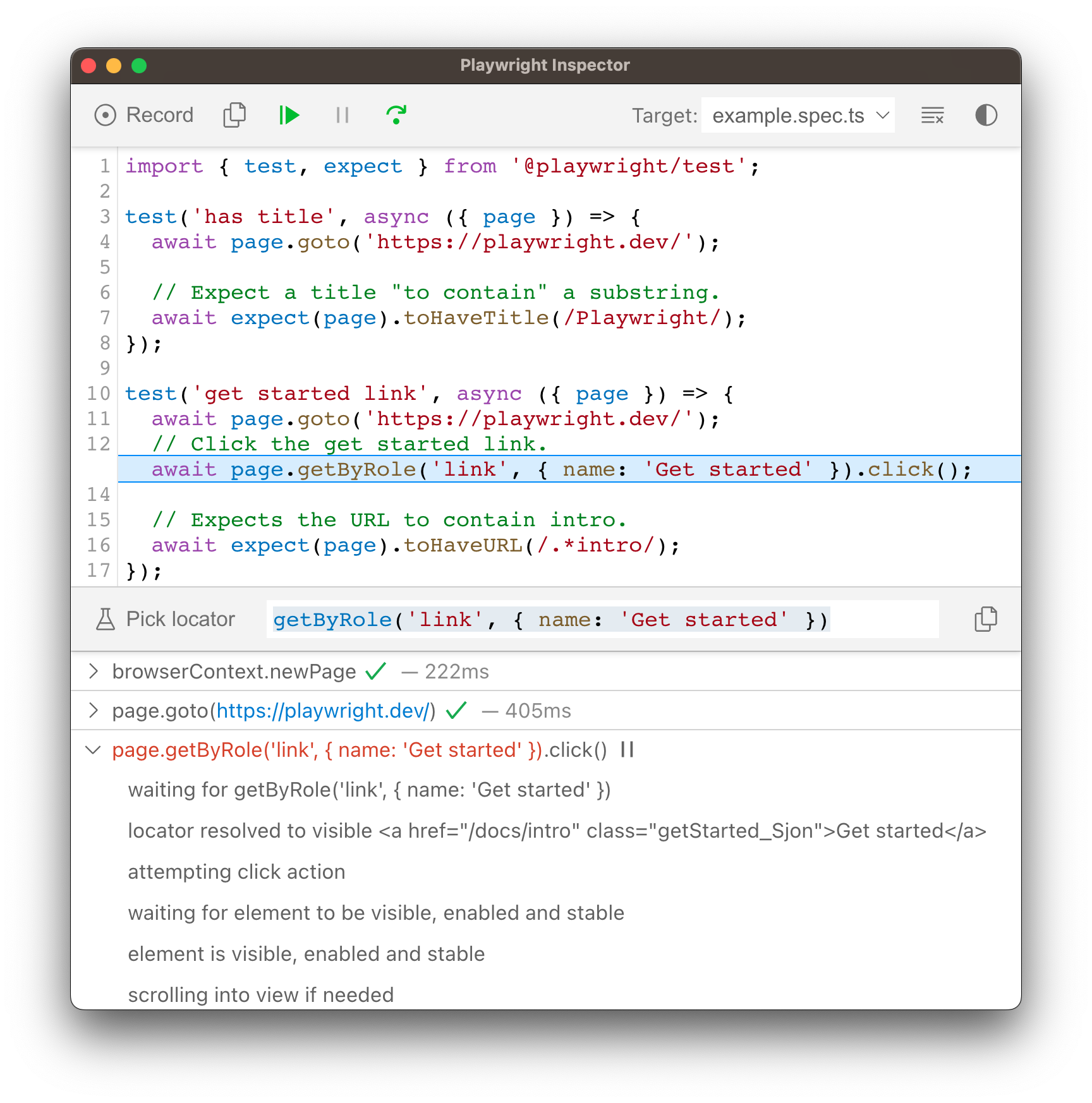
Playwright Inspector 是一个 GUI 工具,可帮助你调试 Playwright 测试。它允许你逐步执行测试、实时编辑定位器、选择定位器并查看可操作性日志。
🌐 The Playwright Inspector is a GUI tool to help you debug your Playwright tests. It allows you to step through your tests, live edit locators, pick locators and see actionability logs.
在调试模式下运行
🌐 Run in debug mode
将 PWDEBUG 环境变量设置为在调试模式下运行你的 Playwright 测试。这会配置 Playwright 进行调试并打开检查器。当设置 PWDEBUG=1 时,还会配置一些其他有用的默认值:
🌐 Set the PWDEBUG environment variable to run your Playwright tests in debug mode. This configures Playwright for debugging and opens the inspector. Additional useful defaults are configured when PWDEBUG=1 is set:
- 浏览器以 head 模式启动
- 默认超时设置为 0(= 无超时)
配置源位置
🌐 Configure source location
要告诉 Playwright 去哪里查找你正在调试的源代码,请通过 PLAYWRIGHT_JAVA_SRC 环境变量传递源目录列表。列表中的路径在 macOS 和 Linux 上应以 : 分隔,在 Windows 上应以 ; 分隔。
🌐 To tell Playwright where to look for the source code that you are debugging, pass a list of the source directories via PLAYWRIGHT_JAVA_SRC environment variable. Paths in the list should be separated by : on macOS and Linux, and by ; on Windows.
- Bash
- PowerShell
- Batch
# Source directories in the list are separated by : on macos and linux and by ; on win.
PWDEBUG=1 PLAYWRIGHT_JAVA_SRC=<java source dirs> mvn test
# Source directories in the list are separated by : on macos and linux and by ; on win.
$env:PLAYWRIGHT_JAVA_SRC="<java source dirs>"
$env:PWDEBUG=1
mvn test
# Source directories in the list are separated by : on macos and linux and by ; on win.
set PLAYWRIGHT_JAVA_SRC=<java source dirs>
set PWDEBUG=1
mvn test
逐步完成你的测试
🌐 Stepping through your tests
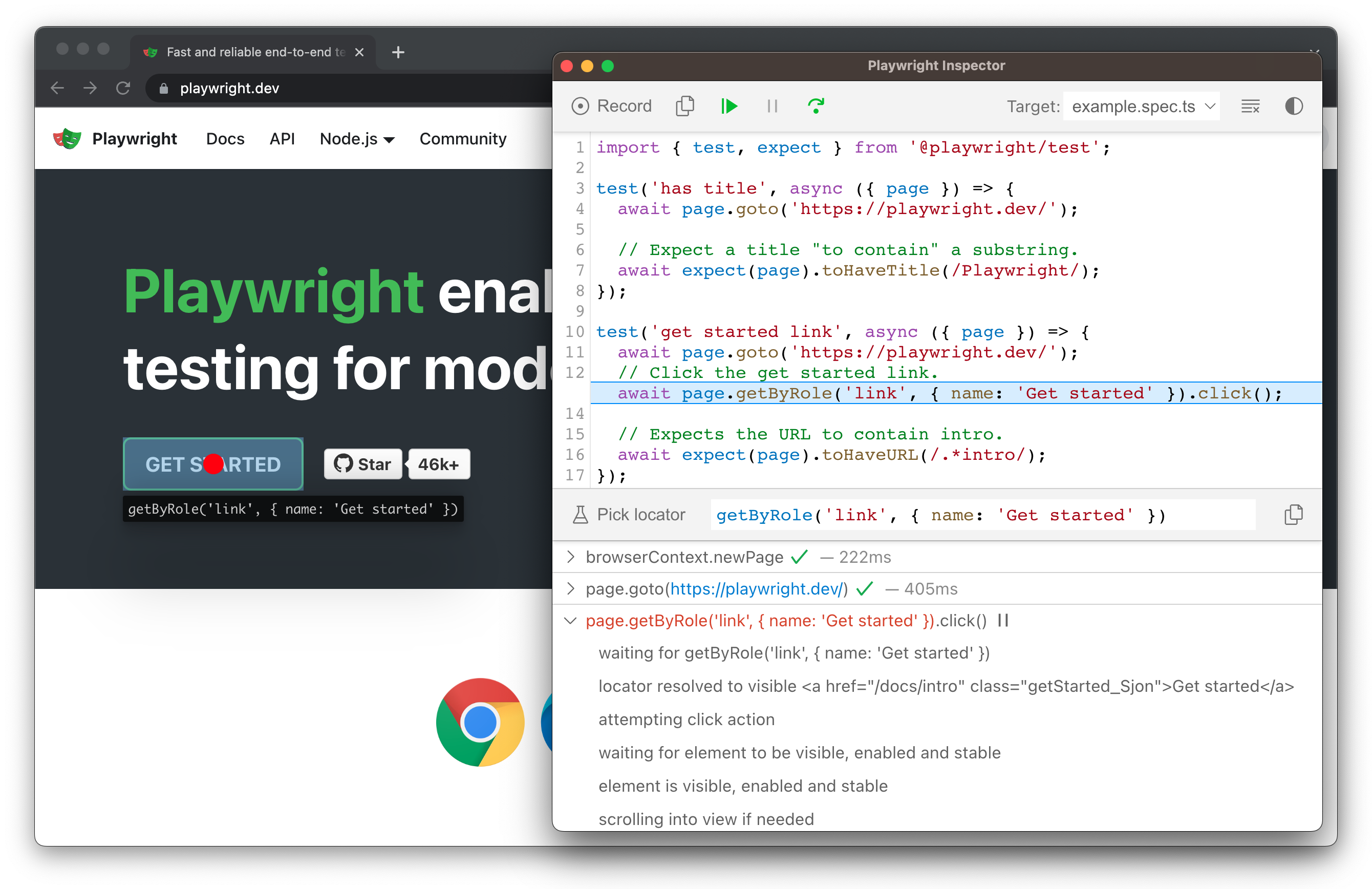
你可以使用检查器顶部的工具栏播放、暂停或逐步执行测试的每个操作。你可以在测试代码中看到当前操作被高亮显示,并在浏览器窗口中看到匹配的元素被高亮显示。
🌐 You can play, pause or step through each action of your test using the toolbar at the top of the Inspector. You can see the current action highlighted in the test code, and matching elements highlighted in the browser window.
从特定断点运行测试
🌐 Run a test from a specific breakpoint
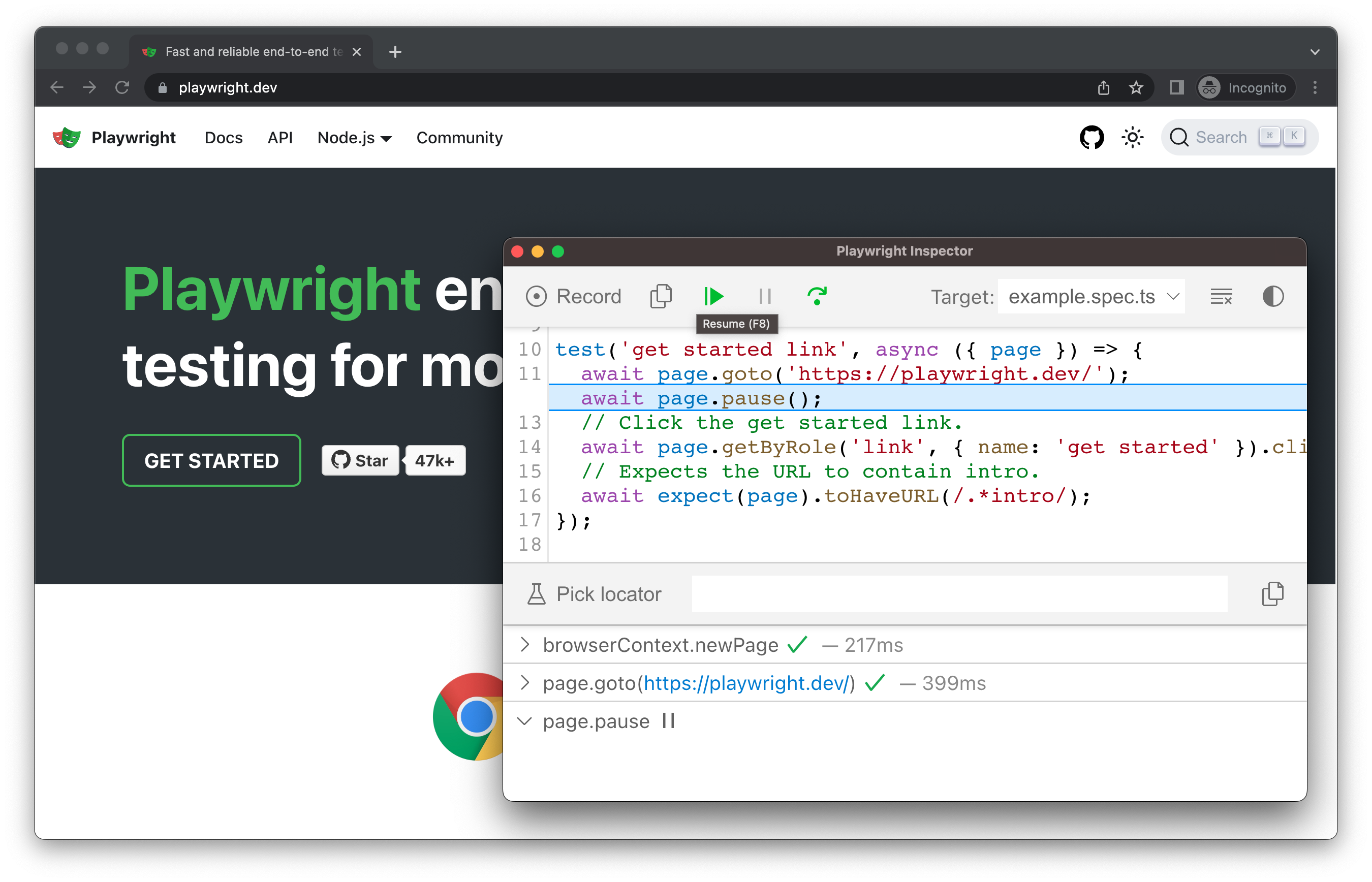
为了加快调试过程,你可以在测试中添加 [Page.pause()](/api/class-page.mdx#page-pause) 方法。这样你就不用逐步骤完成测试的每个动作,才能达到你想要调试的阶段。
🌐 To speed up the debugging process you can add a Page.pause() method to your test. This way you won't have to step through each action of your test to get to the point where you want to debug.
page.pause();
一旦你添加了 page.pause() 调用,就在调试模式下运行你的测试。在检查器中点击“继续”按钮将运行测试,并且只会在 page.pause() 处停止。
🌐 Once you add a page.pause() call, run your tests in debug mode. Clicking the "Resume" button in the Inspector will run the test and only stop on the page.pause().
实时编辑定位器
🌐 Live editing locators
在调试模式下运行时,你可以实时编辑定位器。在“选择定位器”按钮旁边有一个字段显示测试暂停时的定位器 locator。你可以直接在 选择定位器 字段中编辑此定位器,匹配的元素将在浏览器窗口中高亮显示。
🌐 While running in debug mode you can live edit the locators. Next to the 'Pick Locator' button there is a field showing the locator that the test is paused on. You can edit this locator directly in the Pick Locator field, and matching elements will be highlighted in the browser window.
拣选定位器
🌐 Picking locators
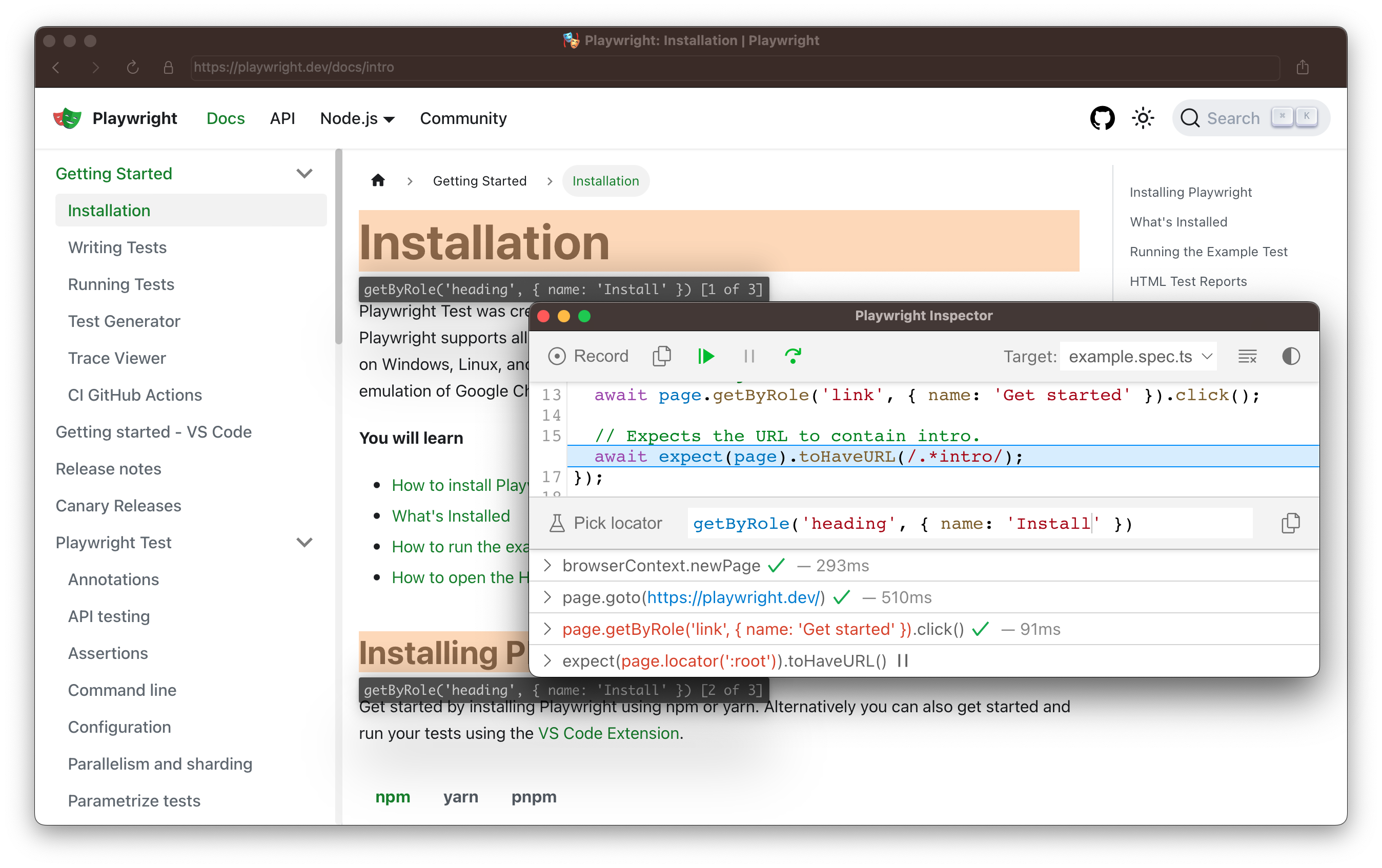
在调试时,你可能需要选择一个更稳健的定位器。你可以通过点击 选择定位器 按钮,并将鼠标悬停在浏览器窗口中的任何元素上来实现。在悬停元素时,下面会高亮显示定位该元素所需的代码。点击浏览器中的某个元素会将定位器添加到字段中,然后你可以对其进行调整或复制到代码中。
🌐 While debugging, you might need to choose a more resilient locator. You can do this by clicking on the Pick Locator button and hovering over any element in the browser window. While hovering over an element you will see the code needed to locate this element highlighted below. Clicking an element in the browser will add the locator into the field where you can then either tweak it or copy it into your code.
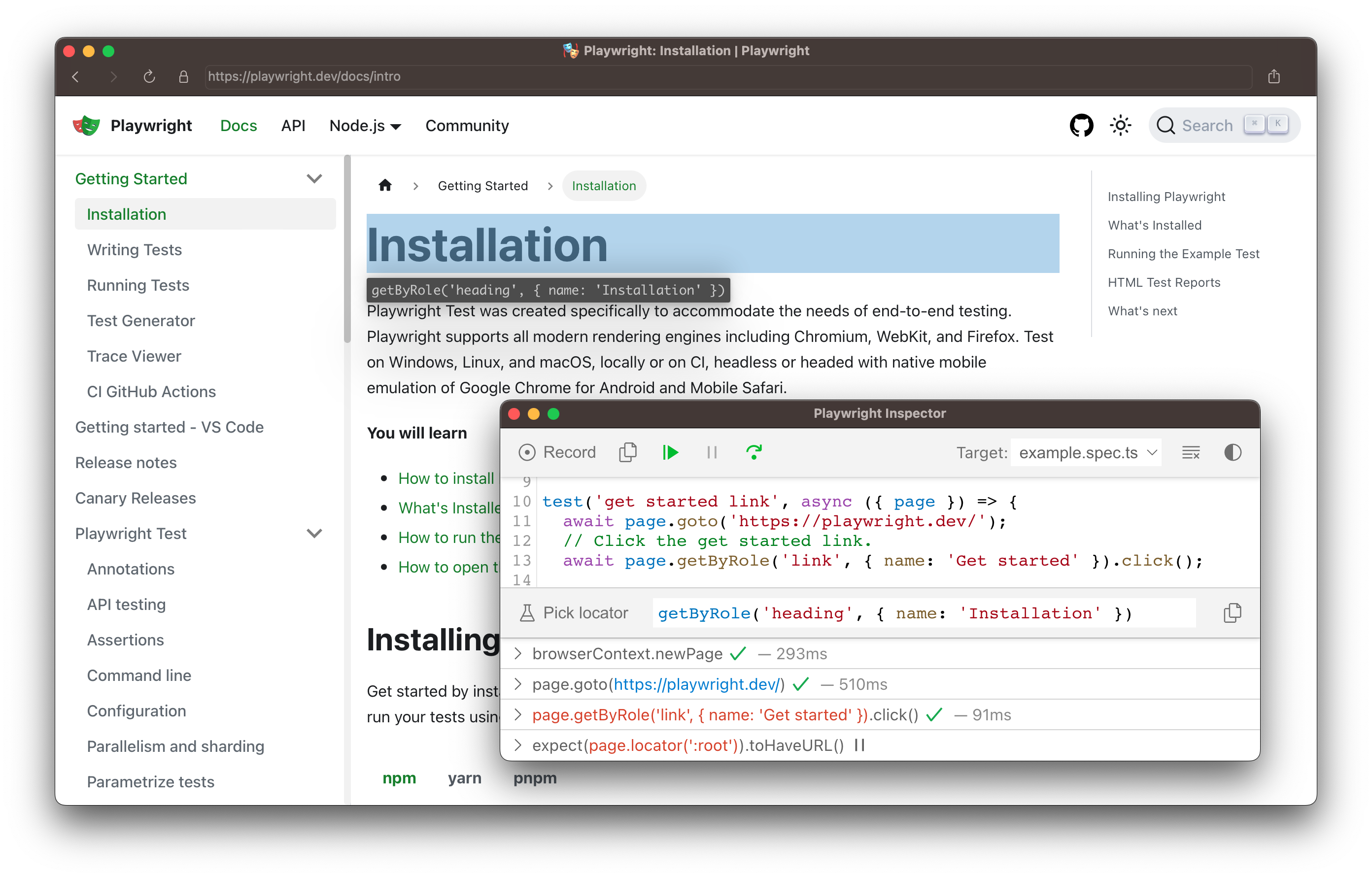
Playwright 会查看你的页面并找出最佳定位器,优先考虑 role、text 和 test id 定位器。如果 Playwright 发现有多个元素匹配该定位器,它会改进定位器,使其具有弹性并能唯一识别目标元素,这样你就不必担心测试因定位器失败而出错。
🌐 Playwright will look at your page and figure out the best locator, prioritizing role, text and test id locators. If Playwright finds multiple elements matching the locator, it will improve the locator to make it resilient and uniquely identify the target element, so you don't have to worry about failing tests due to locators.
可操作性日志
🌐 Actionability logs
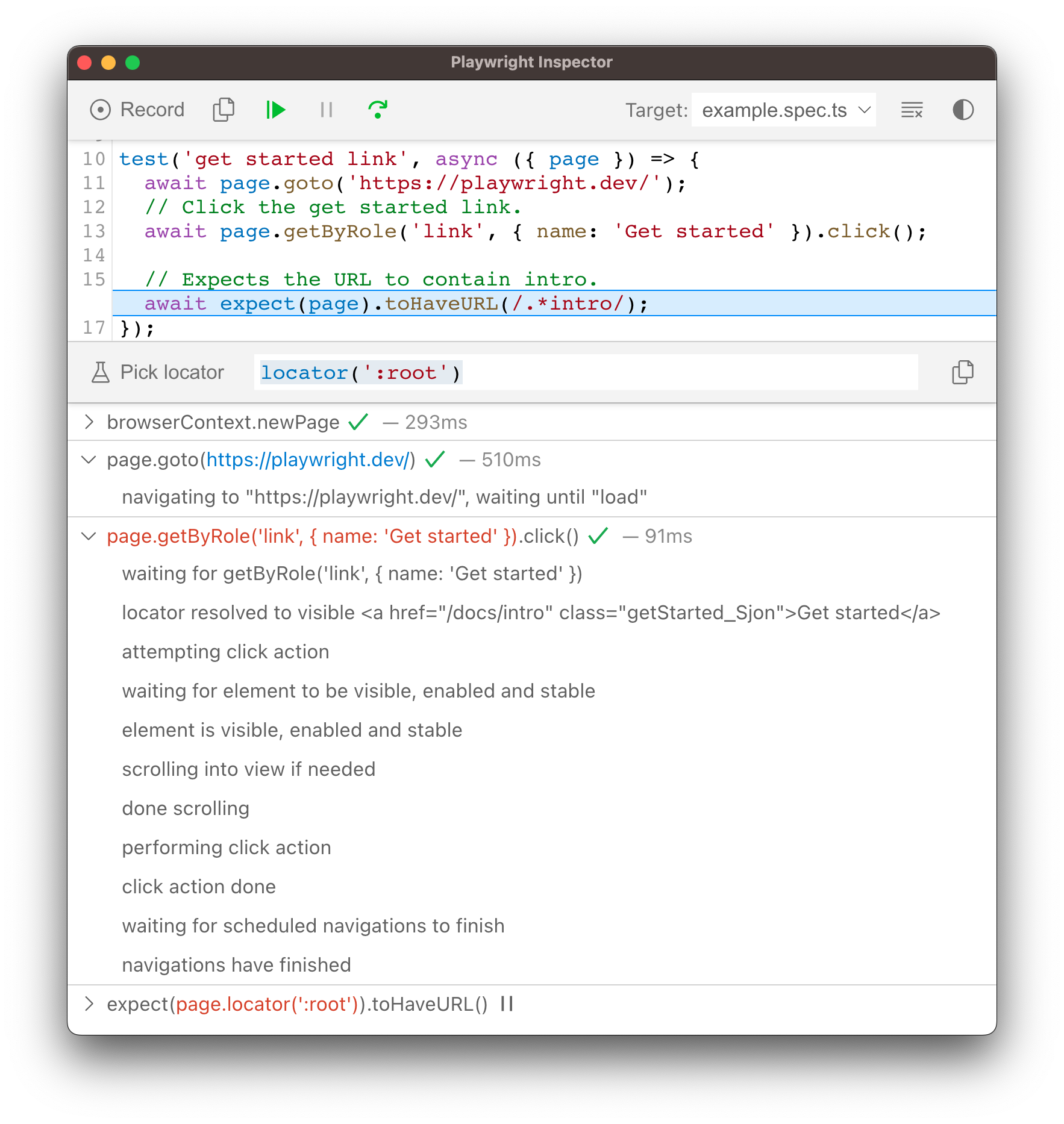
当 Playwright 在点击操作上暂停时,它已经执行了可以在日志中找到的可操作性检查。这可以帮助你了解测试过程中发生了什么,以及 Playwright 做了什么或尝试做了什么。日志会告诉你元素是否可见、是否可用且稳定,定位器是否解析为元素,是否滚动到视图中,等等。如果无法达到可操作性,它会显示操作为等待状态。
🌐 By the time Playwright has paused on a click action, it has already performed actionability checks that can be found in the log. This can help you understand what happened during your test and what Playwright did or tried to do. The log tells you if the element was visible, enabled and stable, if the locator resolved to an element, scrolled into view, and so much more. If actionability can't be reached, it will show the action as pending.
跟踪查看器
🌐 Trace Viewer
Playwright Trace Viewer 是一个 GUI 工具,可让你探索测试的 Playwright 录制轨迹。你可以在左侧前后浏览每个操作,并直观地看到操作期间发生的情况。在屏幕中间,你可以看到该操作的 DOM 快照。在右侧,你可以查看操作详情,如时间、参数、返回值和日志。你还可以查看控制台消息、网络请求和源代码。
🌐 Playwright Trace Viewer is a GUI tool that lets you explore recorded Playwright traces of your tests. You can go back and forward through each action on the left side, and visually see what was happening during the action. In the middle of the screen, you can see a DOM snapshot for the action. On the right side you can see action details, such as time, parameters, return value and log. You can also explore console messages, network requests and the source code.
要了解更多关于如何记录跟踪和使用跟踪查看器的信息,请查看跟踪查看器指南。
🌐 To learn more about how to record traces and use the Trace Viewer, check out the Trace Viewer guide.
浏览器开发者工具
🌐 Browser Developer Tools
在使用 PWDEBUG=console 的调试模式下运行时,开发者工具控制台中可以使用 playwright 对象。开发者工具可以帮助你:
🌐 When running in Debug Mode with PWDEBUG=console, a playwright object is available in the Developer tools console. Developer tools can help you to:
- 检查 DOM 树并查找元素选择器
- 在执行期间查看控制台日志(或了解如何通过 API 阅读日志)
- 检查 网络活动 和其他开发者工具功能
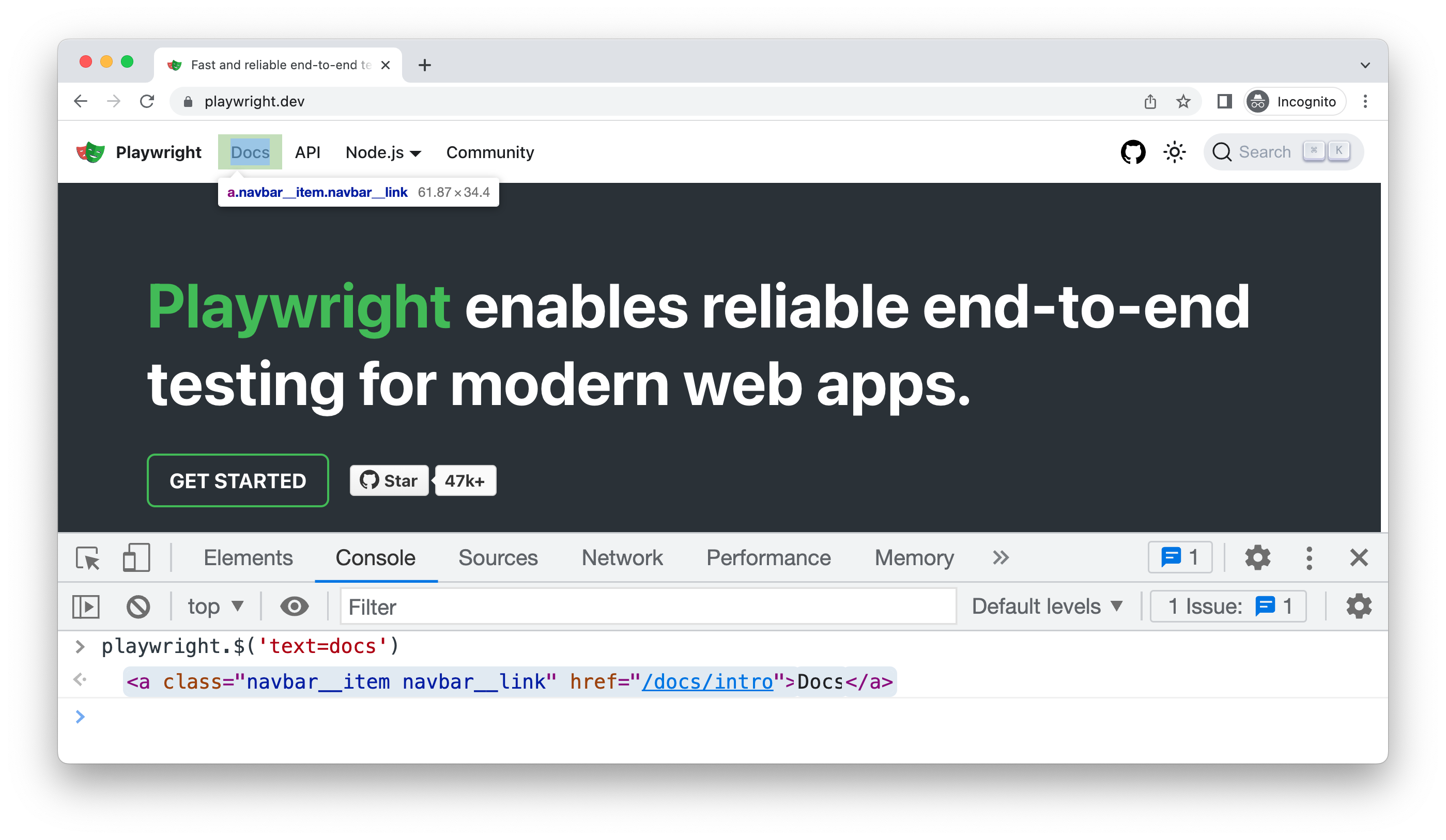
要使用浏览器开发者工具调试你的测试,请先在测试中设置一个断点,通过 Page.pause() 方法暂停执行。
🌐 To debug your tests using the browser developer tools, start by setting a breakpoint in your test to pause the execution using the Page.pause() method.
page.pause();
一旦你在测试中设置了断点,就可以使用 PWDEBUG=console 运行你的测试。
🌐 Once you have set a breakpoint in your test, you can then run your test with PWDEBUG=console.
- Bash
- PowerShell
- Batch
# Source directories in the list are separated by : on macos and linux and by ; on win.
PWDEBUG=console PLAYWRIGHT_JAVA_SRC=<java source dirs> mvn test
# Source directories in the list are separated by : on macos and linux and by ; on win.
$env:PLAYWRIGHT_JAVA_SRC="<java source dirs>"
$env:PWDEBUG=console
mvn test
# Source directories in the list are separated by : on macos and linux and by ; on win.
set PLAYWRIGHT_JAVA_SRC=<java source dirs>
set PWDEBUG=console
mvn test
一旦 Playwright 启动浏览器窗口,你就可以打开开发者工具。playwright 对象将在控制台面板中可用。
🌐 Once Playwright launches the browser window, you can open the developer tools. The playwright object will be available in the console panel.
playwright.$(selector)
使用实际的 Playwright 查询引擎查询 Playwright 选择器,例如:
🌐 Query the Playwright selector, using the actual Playwright query engine, for example:
playwright.$('.auth-form >> text=Log in');

<button>Log in</button>
playwright.$$(selector)
与 playwright.$ 相同,但返回所有匹配的元素。
🌐 Same as playwright.$, but returns all matching elements.
playwright.$$('li >> text=John')

[<li>, <li>, <li>, <li>]
playwright.inspect(selector)
在元素面板中显示元素。
🌐 Reveal element in the Elements panel.
playwright.inspect('text=Log in')
playwright.locator(selector)
创建定位器并查询匹配元素,例如:
🌐 Create a locator and query matching elements, for example:
playwright.locator('.auth-form', { hasText: 'Log in' });

Locator ()
  - element: button
  - elements: [button]
playwright.selector(element)
为给定的元素生成选择器。例如,在元素面板中选择一个元素并传入 $0:
🌐 Generates selector for the given element. For example, select an element in the Elements panel and pass $0:
playwright.selector($0)

"div[id="glow-ingress-block"] >> text=/.*Hello.*/"
详细 API 日志
🌐 Verbose API logs
Playwright 支持使用 DEBUG 环境变量进行详细日志记录。
🌐 Playwright supports verbose logging with the DEBUG environment variable.
- Bash
- PowerShell
- Batch
DEBUG=pw:api mvn test
$env:DEBUG="pw:api"
mvn test
set DEBUG=pw:api
mvn test
对于 WebKit:在执行过程中启动 WebKit 检查器将阻止 Playwright 脚本的进一步执行,并会重置预先配置的用户代理和设备模拟。
有头模式
🌐 Headed mode
Playwright 默认以无头模式运行浏览器。要更改此行为,请将 headless: false 用作启动选项。
🌐 Playwright runs browsers in headless mode by default. To change this behavior, use headless: false as a launch option.
你也可以使用 setSlowMo 选项来减慢执行速度(每个操作延迟 N 毫秒),并在调试时跟踪执行过程。
🌐 You can also use the setSlowMo option to slow down execution (by N milliseconds per operation) and follow along while debugging.
// Chromium, Firefox, or WebKit
chromium.launch(new BrowserType.LaunchOptions()
  .setHeadless(false)
  .setSlowMo(100));