测试生成器
介绍
🌐 Introduction
Playwright 提供了在浏览器中执行操作时为你生成测试的功能,这是一种快速开始测试的好方法。Playwright 会查看你的页面并找出最佳定位器,优先考虑角色、文本和测试 ID 定位器。如果生成器找到多个匹配定位器的元素,它会改进定位器,使其具有唯一性,能够可靠地识别目标元素。
🌐 Playwright comes with the ability to generate tests for you as you perform actions in the browser and is a great way to quickly get started with testing. Playwright will look at your page and figure out the best locator, prioritizing role, text and test id locators. If the generator finds multiple elements matching the locator, it will improve the locator to make it resilient that uniquely identify the target element.
使用 Playwright 检查器生成测试
🌐 Generate tests with the Playwright Inspector
运行 codegen 命令时,会打开两个窗口,一个是浏览器窗口,你可以在其中与希望测试的网站进行交互;另一个是 Playwright Inspector 窗口,你可以在其中录制测试,然后将其复制到你的编辑器中。
🌐 When running the codegen command two windows will be opened, a browser window where you interact with the website you wish to test and the Playwright Inspector window where you can record your tests and then copy them into your editor.
运行代码生成器
🌐 Running Codegen
使用 codegen 命令运行测试生成器,然后输入你想为其生成测试的网站的 URL。URL 是可选的,你也可以在没有 URL 的情况下运行命令,然后直接将 URL 添加到浏览器窗口中。
🌐 Use the codegen command to run the test generator followed by the URL of the website you want to generate tests for. The URL is optional and you can always run the command without it and then add the URL directly into the browser window instead.
pwsh bin/Debug/netX/playwright.ps1 codegen demo.playwright.dev/todomvc
记录测试
🌐 Recording a test
运行 codegen 命令并在浏览器窗口中执行操作。Playwright 将为用户交互生成代码,你可以在 Playwright 检查器窗口中查看。一旦录制测试完成,停止录制并按 复制 按钮将生成的测试代码复制到你的编辑器中。
🌐 Run the codegen command and perform actions in the browser window. Playwright will generate the code for the user interactions which you can see in the Playwright Inspector window. Once you have finished recording your test stop the recording and press the copy button to copy your generated test into your editor.
使用测试生成器,你可以记录:
🌐 With the test generator you can record:
- 只需与页面交互即可执行点击或填充等操作
- 通过点击工具栏中的某个图标,然后点击页面上的元素进行断言。你可以选择:
'assert visibility'用于断言一个元素是可见的'assert text'用于断言一个元素包含特定文本'assert value'用于断言元素具有特定值
当你完成与页面的交互后,按下 录制 按钮停止录制,然后使用 复制 按钮将生成的代码复制到你的编辑器中。
使用 清除 按钮清除代码以重新开始录制。完成后,关闭 Playwright 检查器窗口或停止终端命令。
🌐 Use the clear button to clear the code to start recording again. Once finished, close the Playwright inspector window or stop the terminal command.
生成定位器
🌐 Generating locators
你可以使用测试生成器生成定位器。
🌐 You can generate locators with the test generator.
- 按下
'Record'按钮停止录音,'Pick Locator'按钮将会出现。 - 点击
'Pick Locator'按钮,然后将鼠标悬停在浏览器窗口中的元素上,以查看每个元素下方的定位器高亮显示。 - 要选择定位器,请点击你想要定位的元素,定位器的代码将显示在“选择定位器”按钮旁的字段中。
- 然后,你可以在此字段中编辑定位器以对其进行微调,或使用复制按钮将其复制并粘贴到代码中。
模拟
🌐 Emulation
你可以使用测试生成器通过模拟来生成测试,以便为特定的视口、设备、配色方案生成测试,同时还可以模拟地理位置、语言或时区。测试生成器还可以在保留已认证状态的情况下生成测试。
🌐 You can use the test generator to generate tests using emulation so as to generate a test for a specific viewport, device, color scheme, as well as emulate the geolocation, language or timezone. The test generator can also generate a test while preserving authenticated state.
模拟视口大小
🌐 Emulate viewport size
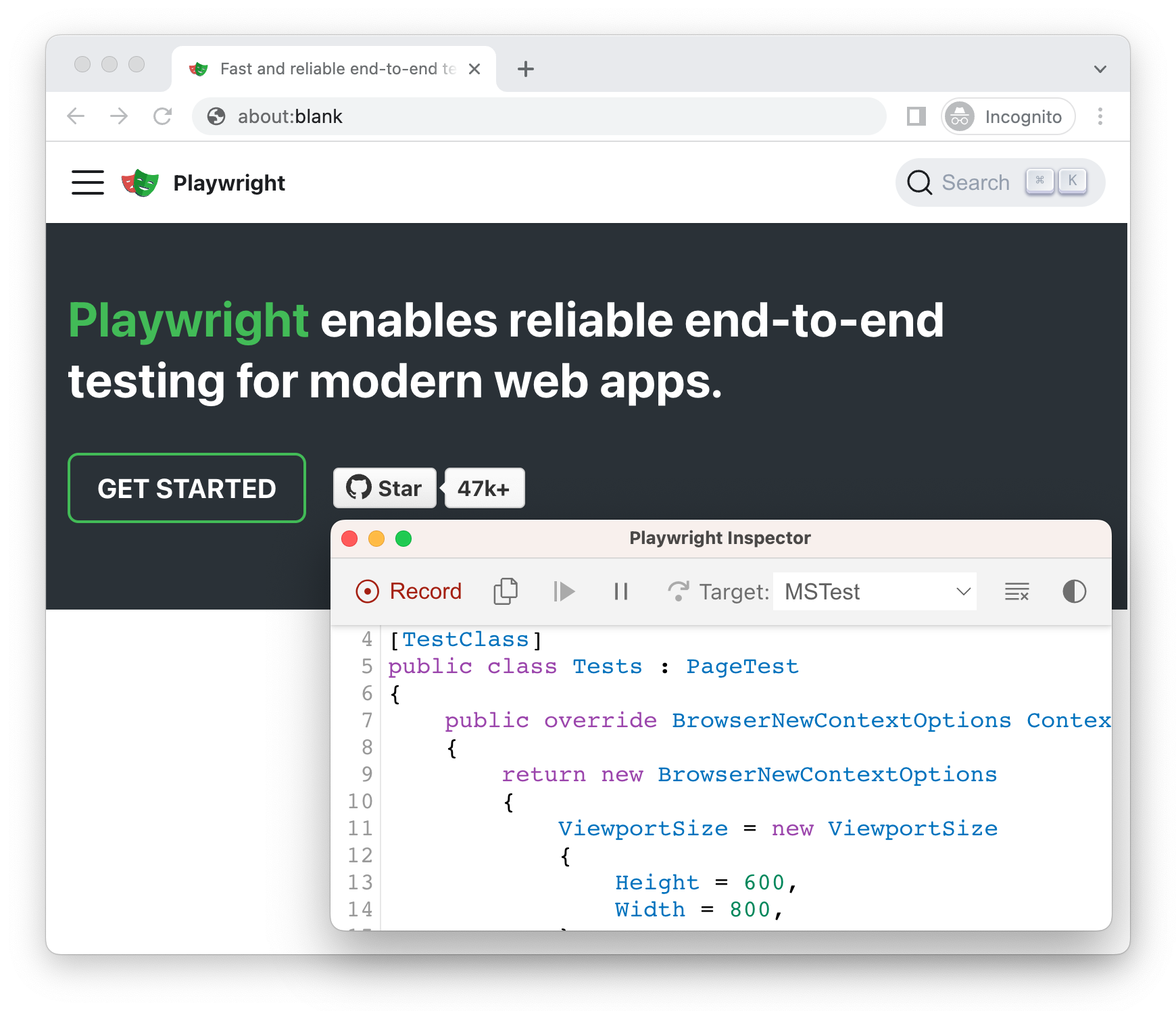
Playwright 会打开一个浏览器窗口,其视口设置为特定的宽度和高度,并且不会响应,因为测试需要在相同条件下进行。使用 --viewport 选项可以生成具有不同视口尺寸的测试。
🌐 Playwright opens a browser window with its viewport set to a specific width and height and is not responsive as tests need to be run under the same conditions. Use the --viewport option to generate tests with a different viewport size.
pwsh bin/Debug/netX/playwright.ps1 codegen --viewport-size="800,600" playwright.dev
模拟设备
🌐 Emulate devices
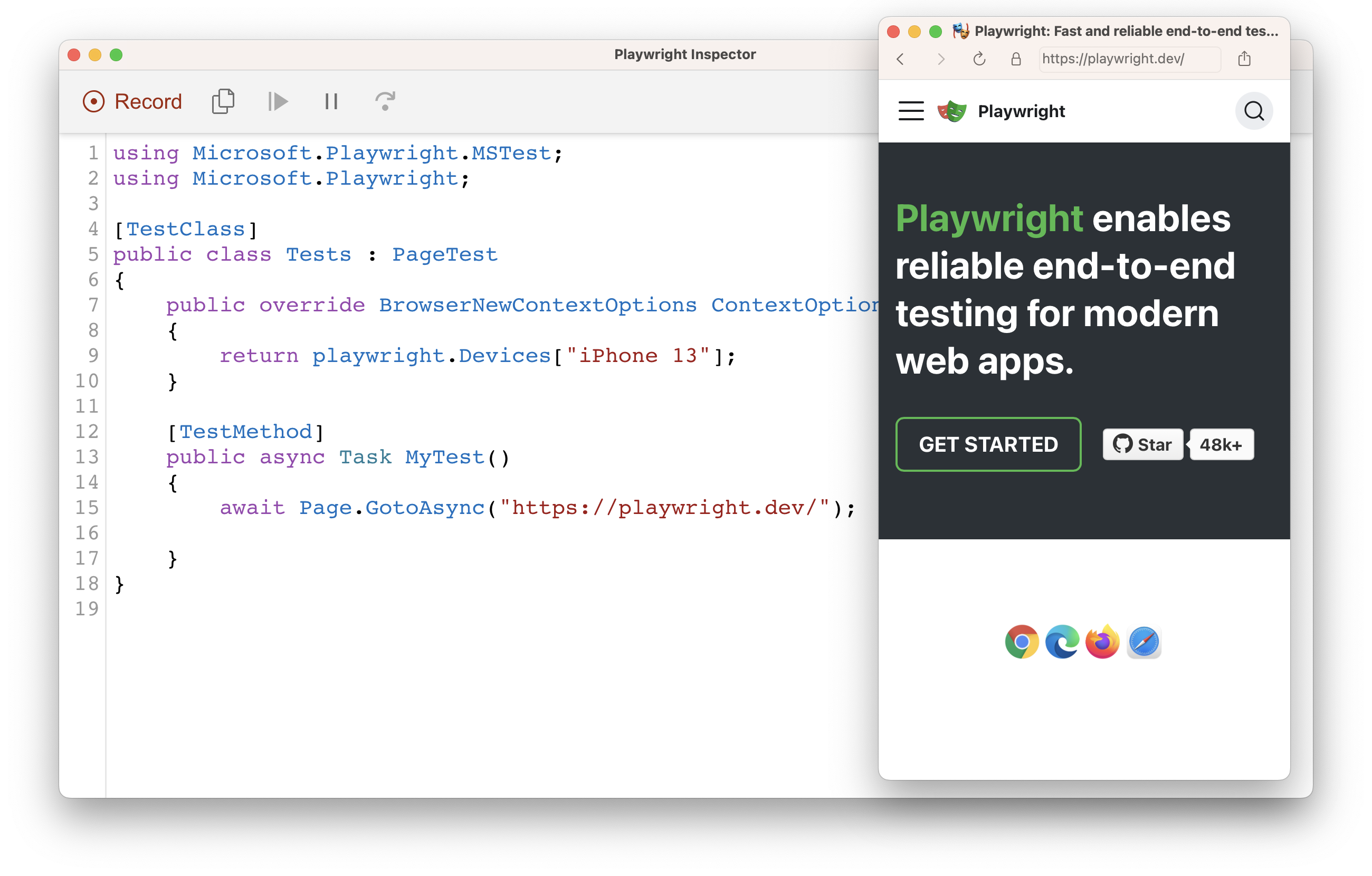
使用 --device 选项记录脚本和测试以模拟移动设备,该选项可设置视口大小和用户代理等参数。
🌐 Record scripts and tests while emulating a mobile device using the --device option which sets the viewport size and user agent among others.
pwsh bin/Debug/netX/playwright.ps1 codegen --device="iPhone 13" playwright.dev
模拟配色方案
🌐 Emulate color scheme
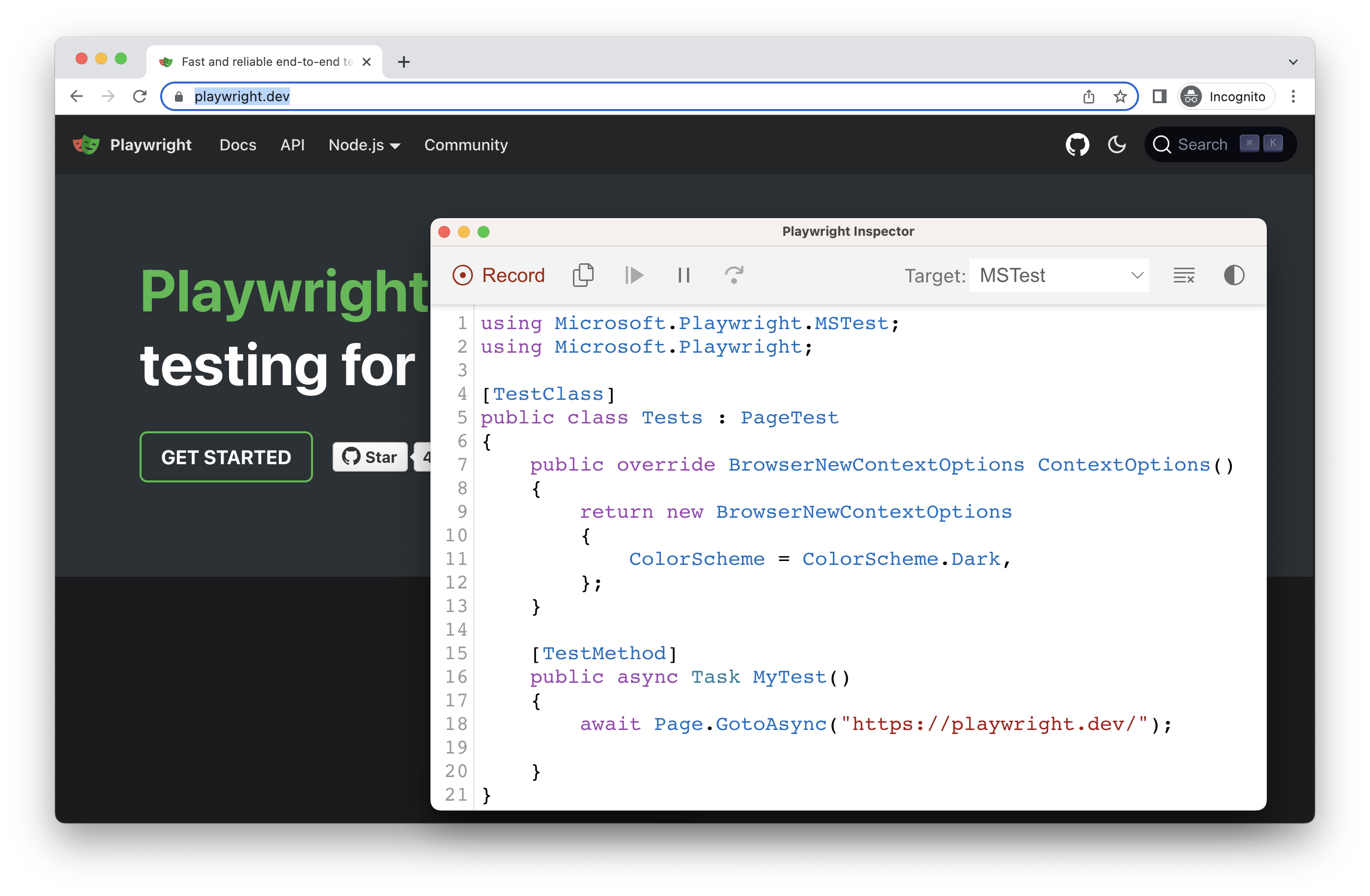
在使用 --color-scheme 选项模拟配色方案的同时记录脚本和测试。
🌐 Record scripts and tests while emulating the color scheme with the --color-scheme option.
pwsh bin/Debug/netX/playwright.ps1 codegen --color-scheme=dark playwright.dev
模拟地理位置、语言和时区
🌐 Emulate geolocation, language and timezone
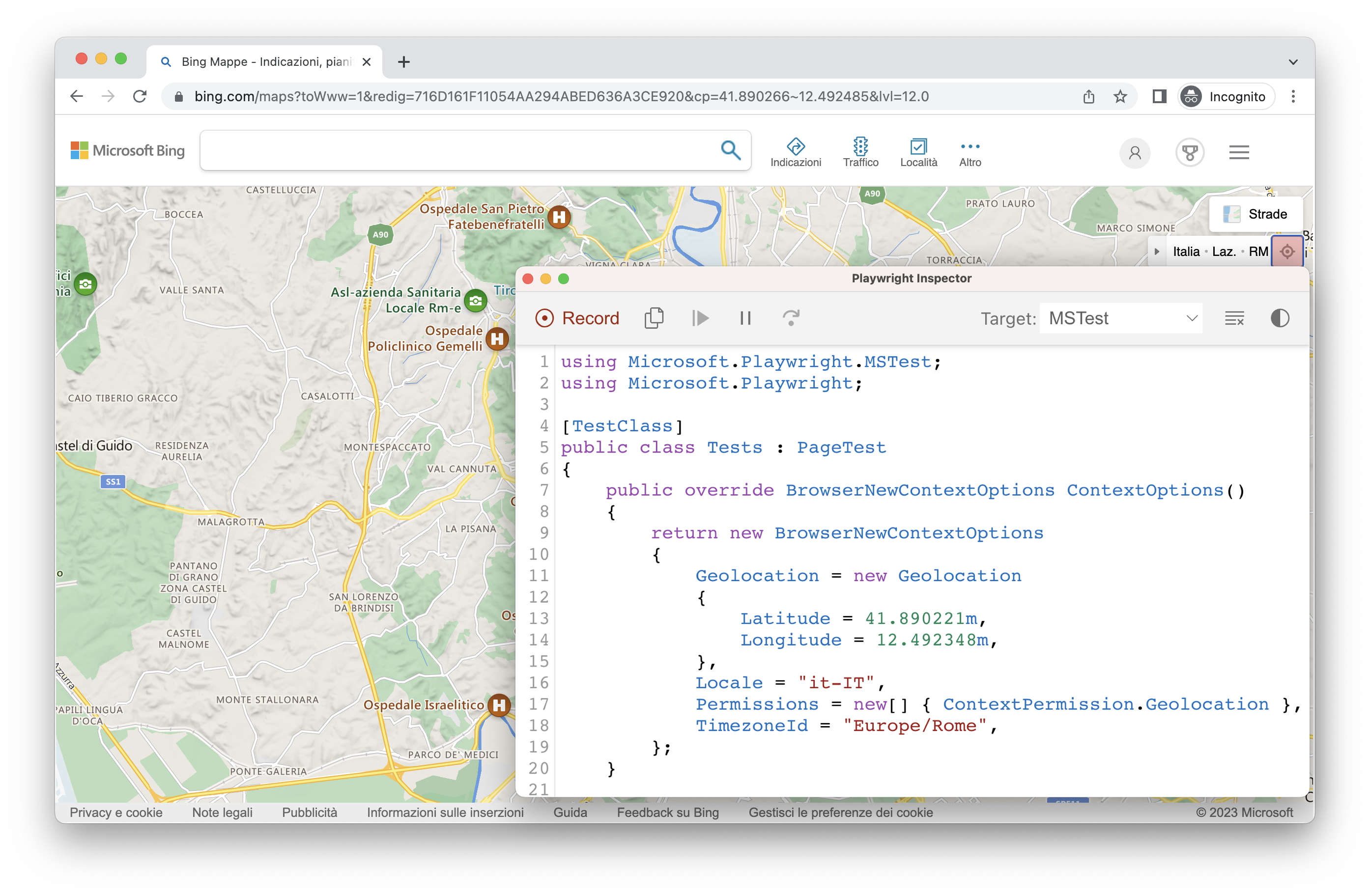
使用 --timezone、--geolocation 和 --lang 选项在模拟时区、语言和位置的同时记录脚本和测试。页面打开后:
🌐 Record scripts and tests while emulating timezone, language & location using the --timezone, --geolocation and --lang options. Once the page opens:
- 接受 cookies
- 在右上角,点击“定位我”按钮以查看地理位置功能的效果。
pwsh bin/Debug/netX/playwright.ps1 codegen --timezone="Europe/Rome" --geolocation="41.890221,12.492348" --lang="it-IT" bing.com/maps
保留经过身份验证的状态
🌐 Preserve authenticated state
运行 codegen 并使用 --save-storage 来保存会话结束时的 cookies、localStorage 和 IndexedDB 数据。这对于单独记录身份验证步骤并在以后记录更多测试时重新使用非常有用。
🌐 Run codegen with --save-storage to save cookies, localStorage and IndexedDB data at the end of the session. This is useful to separately record an authentication step and reuse it later when recording more tests.
pwsh bin/Debug/netX/playwright.ps1 codegen github.com/microsoft/playwright --save-storage=auth.json
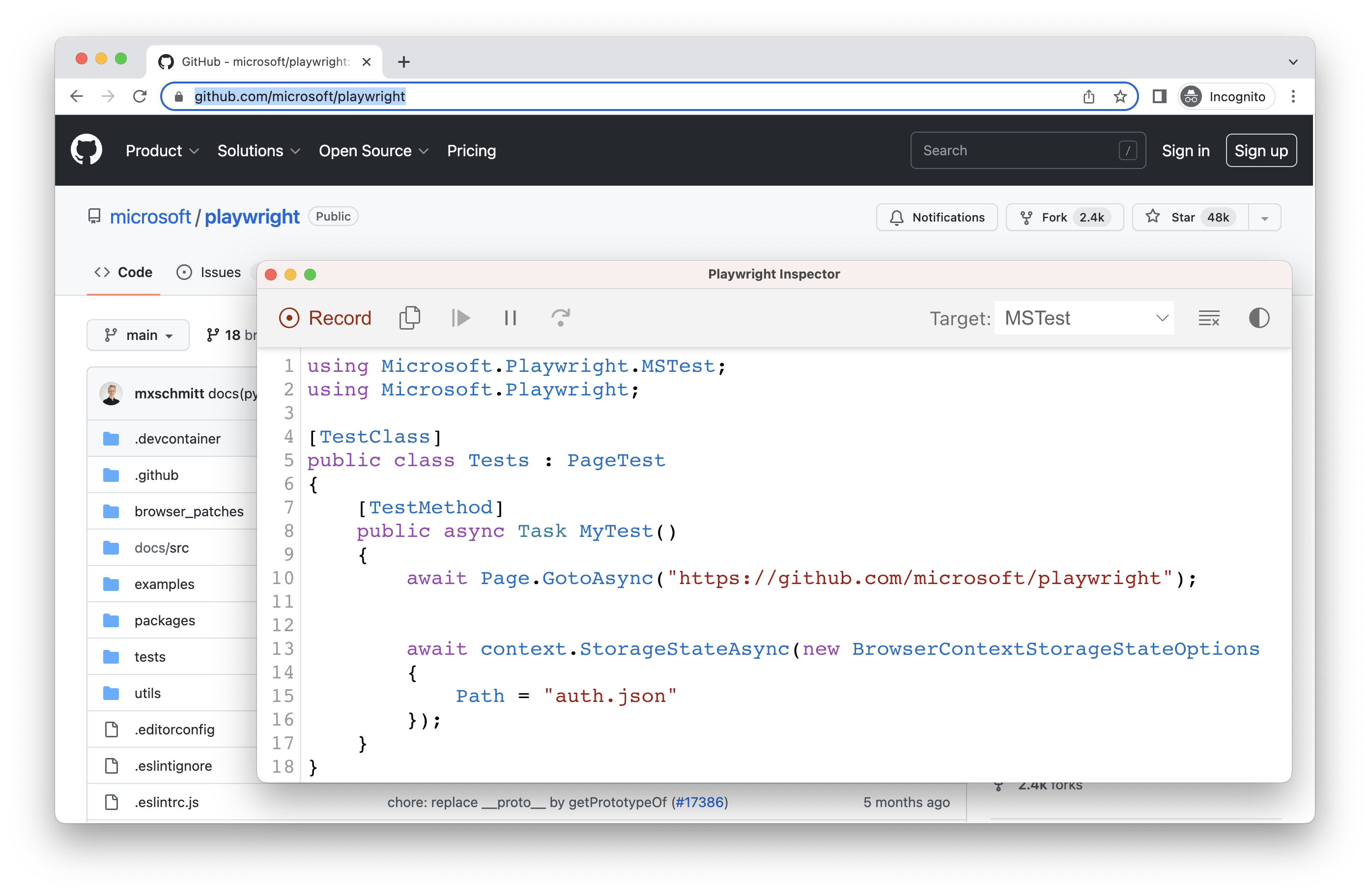
登录
🌐 Login
在进行身份验证并关闭浏览器后,auth.json 将包含存储状态,你可以在测试中重复使用它。
🌐 After performing authentication and closing the browser, auth.json will contain the storage state which you can then reuse in your tests.
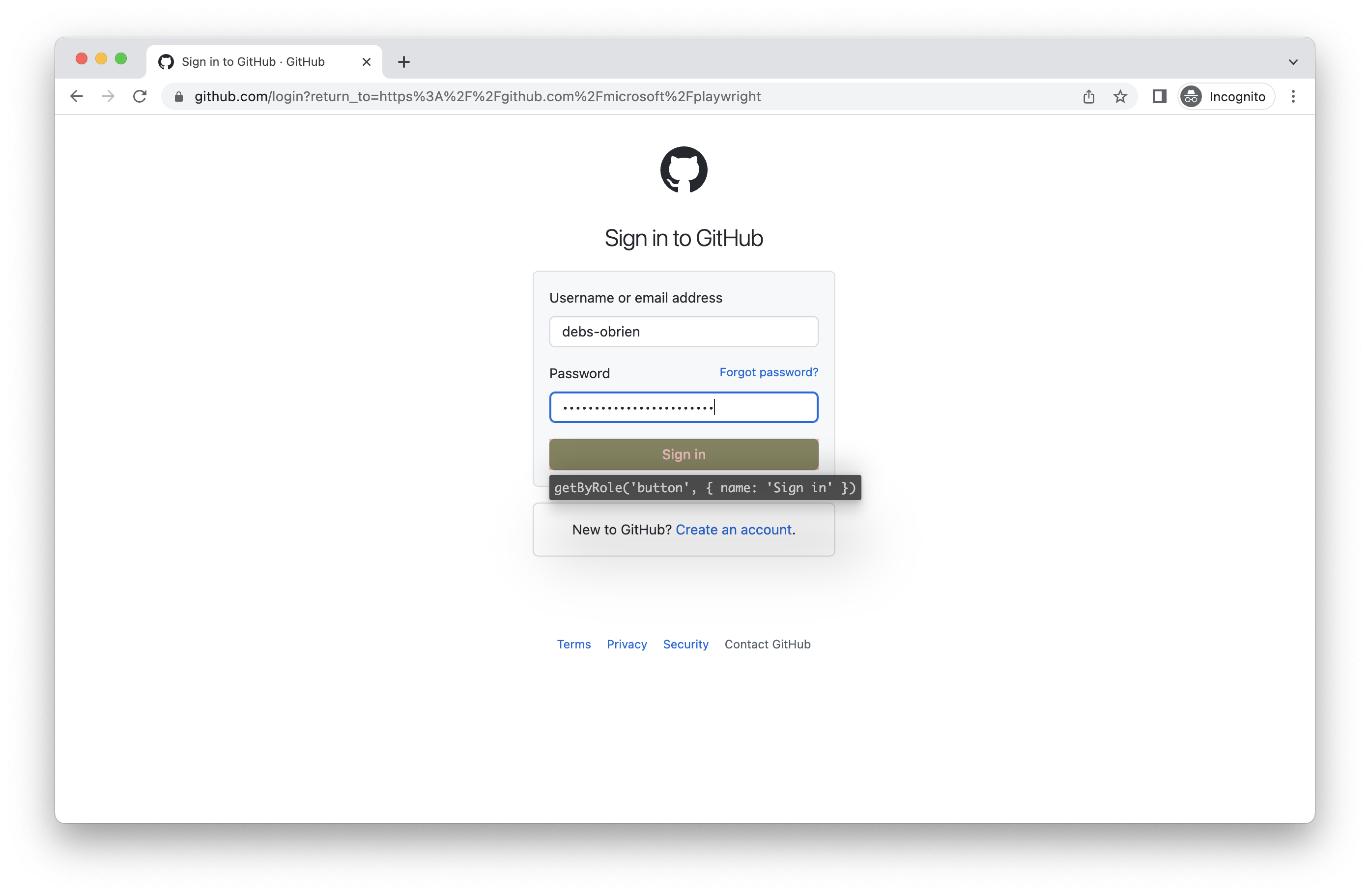
确保你只在本地使用 auth.json,因为它包含敏感信息。在生成测试完成后,将其添加到你的 .gitignore 中或将其删除。
🌐 Make sure you only use the auth.json locally as it contains sensitive information. Add it to your .gitignore or delete it once you have finished generating your tests.
加载已验证状态
🌐 Load authenticated state
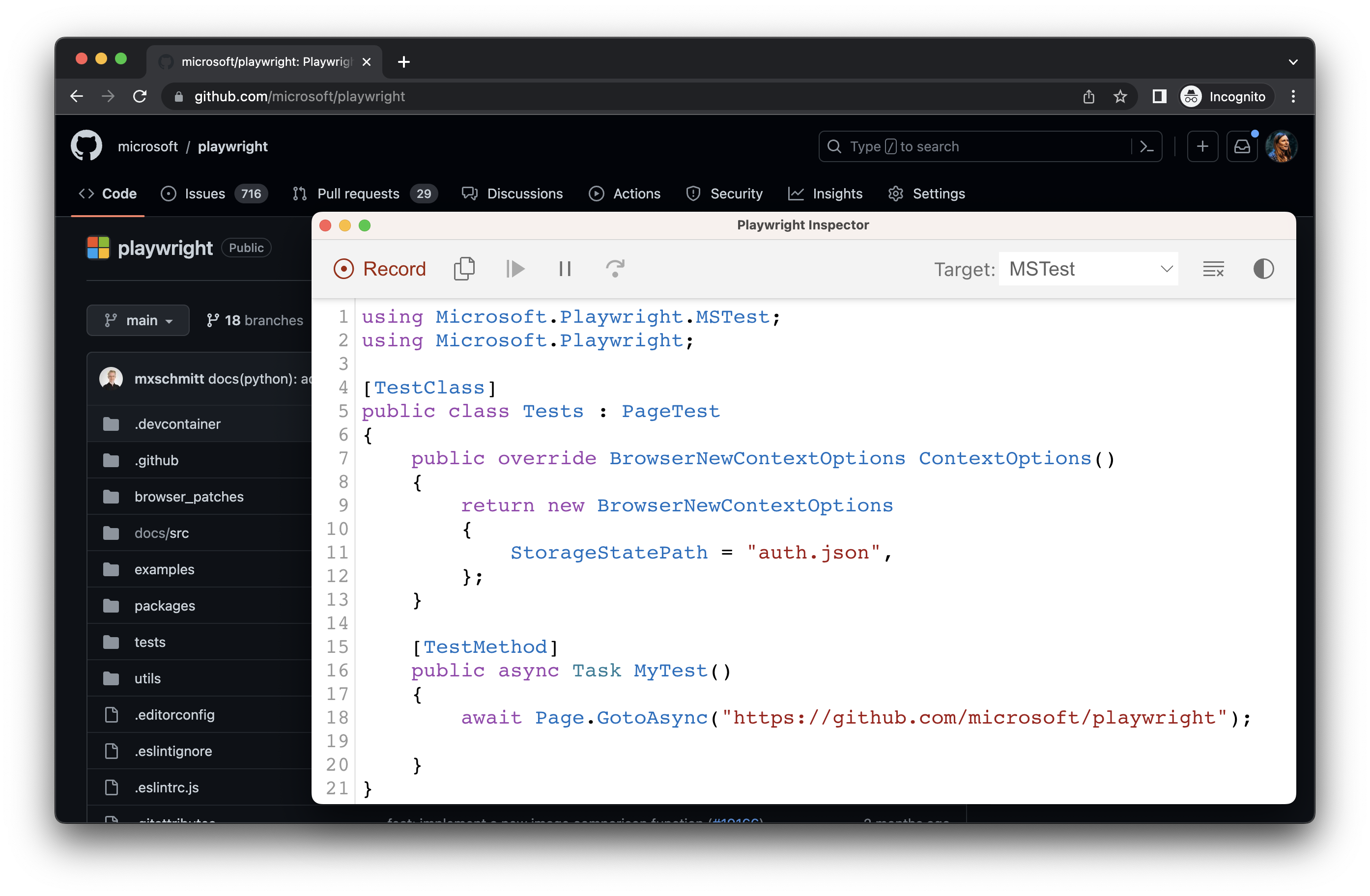
使用 --load-storage 运行以使用之前从 auth.json 加载的存储。这样,所有 cookies、localStorage 和 IndexedDB 数据都会恢复,使大多数 web 应用回到已认证状态,而无需再次登录。这意味着你可以从已登录的状态继续生成测试。
🌐 Run with --load-storage to consume the previously loaded storage from the auth.json. This way, all cookies, localStorage and IndexedDB data will be restored, bringing most web apps to the authenticated state without the need to login again. This means you can continue generating tests from the logged in state.
pwsh bin/Debug/netX/playwright.ps1 codegen --load-storage=auth.json github.com/microsoft/playwright
使用现有的 userDataDir
🌐 Use existing userDataDir
运行 codegen 并使用 --user-data-dir 来为浏览器会话设置一个固定的用户数据目录。如果你创建了自定义的浏览器用户数据目录,codegen 将使用现有的浏览器配置文件,并能够访问该配置文件中存在的任何身份验证状态。
🌐 Run codegen with --user-data-dir to set a fixed user data directory for the browser session. If you create a custom browser user data directory, codegen will use this existing browser profile and have access to any authentication state present in that profile.
从 Chrome 136 起,无法通过自动化工具(如 Playwright)访问默认的用户数据目录。你必须为测试创建一个单独的用户数据目录。:::
pwsh bin/Debug/netX/playwright.ps1 codegen --user-data-dir=/path/to/your/browser/data/ github.com/microsoft/playwright
使用 HTTP 凭证进行身份验证
🌐 Authenticate with HTTP credentials
使用 codegen 和 --http-credentials 来使用 HTTP 基本认证 进行认证。不同于嵌入在 URL 中的凭证,它们会在录制会话中发送给任何请求它们的来源,并包含在生成的代码中。
🌐 Run codegen with --http-credentials to authenticate with HTTP Basic Authentication. Unlike credentials embedded in the URL, they are sent to any origin that requests them during the recording session and are included in the generated code.
pwsh bin/Debug/netX/playwright.ps1 codegen --http-credentials="username:password" example.com
使用自定义设置进行录制
🌐 Record using custom setup
如果你想在一些非标准环境中使用 codegen(例如,使用 BrowserContext.RouteAsync()),可以调用 Page.PauseAsync(),它会打开一个带有 codegen 控件的独立窗口。
🌐 If you would like to use codegen in some non-standard setup (for example, use BrowserContext.RouteAsync()), it is possible to call Page.PauseAsync() that will open a separate window with codegen controls.
using Microsoft.Playwright;

using var playwright = await Playwright.CreateAsync();
var chromium = playwright.Chromium;
// Make sure to run headed.
var browser = await chromium.LaunchAsync(new() { Headless = false });

// Setup context however you like.
var context = await browser.NewContextAsync(); // Pass any options
await context.RouteAsync("**/*", route => route.ContinueAsync());

// Pause the page, and start recording manually.
var page = await context.NewPageAsync();
await page.PauseAsync();